What FocusLeaf Can Do

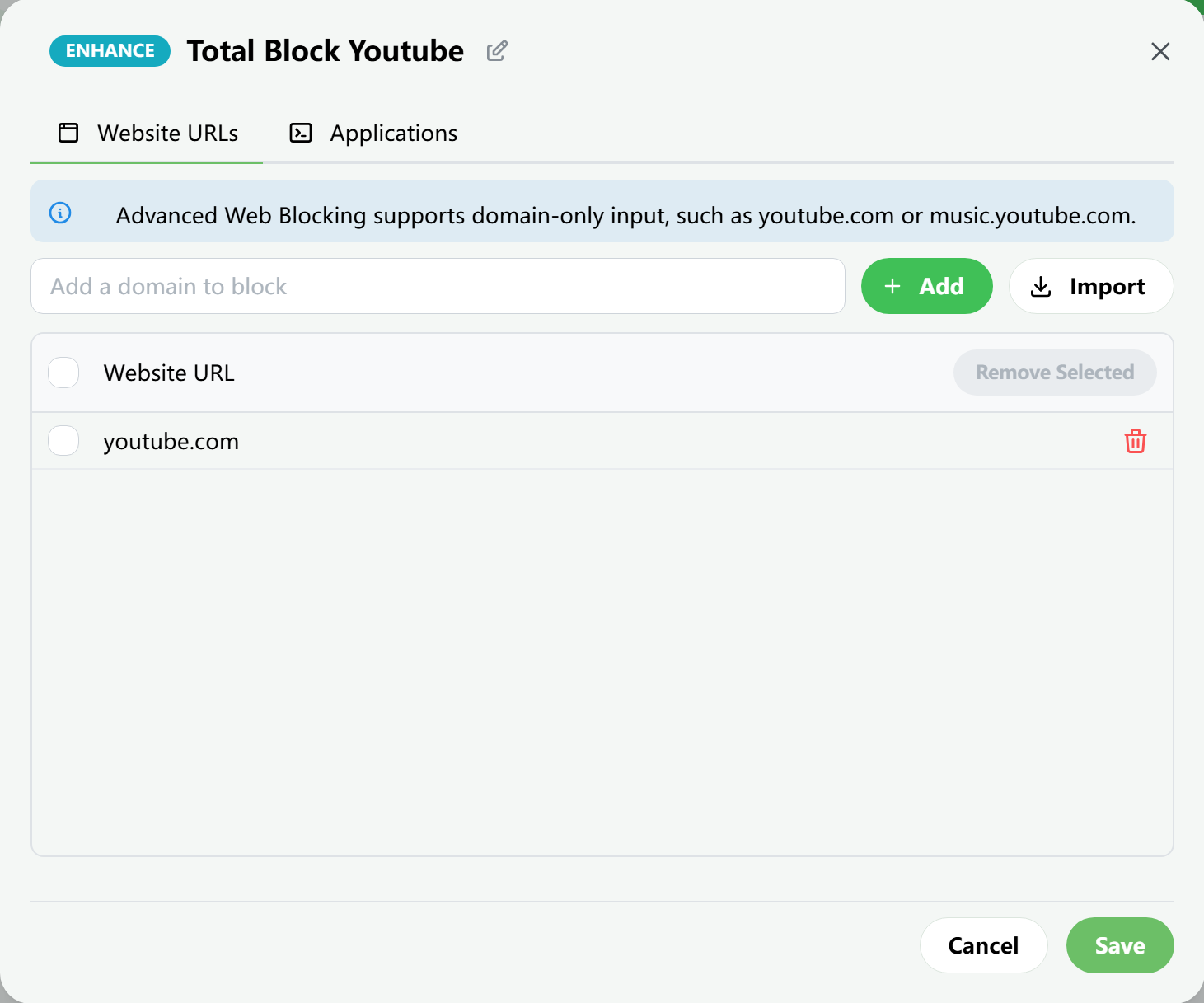
Block website URLs, page titles, and apps. Set exceptions to keep specific sites accessible.

Block all of YouTube, but allow one specific video.

Block only the YouTube Shorts section.

Block every URL containing "game".

Block pages whose titles contain "game".

Block apps, window titles, and UWP apps too.
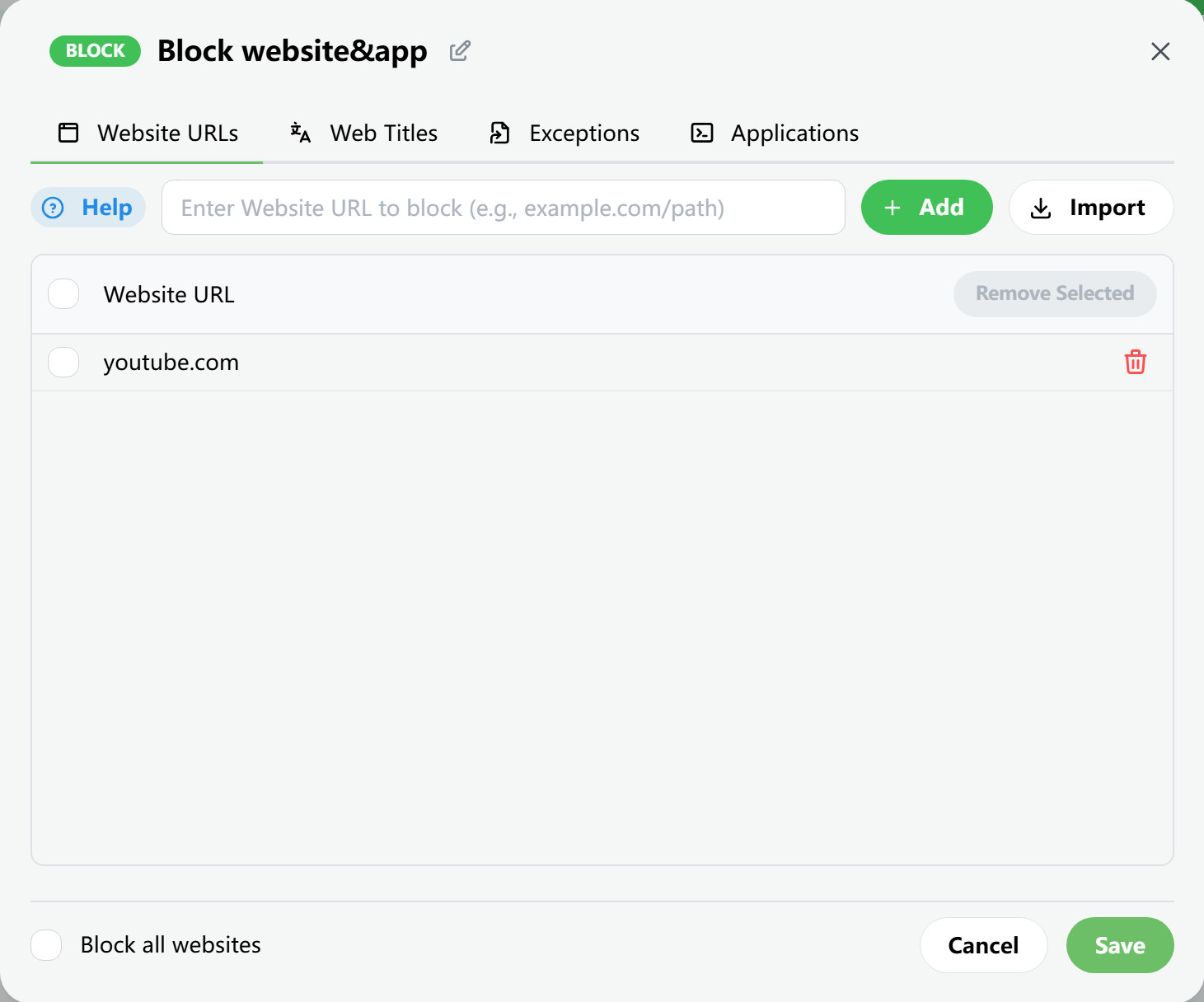
Standard Blocking rule editor

Enhanced Web Blocking: strict system-level web blocking for deeper self-discipline.

Tired of fighting chat apps or work tools that still have web access?

Enhanced Web Blocking doesn't just block websites in browsers. It applies web blocking across the entire system.

Go beyond browser-only blocking and make it much harder to give in.

Enhanced Web Blocking screen

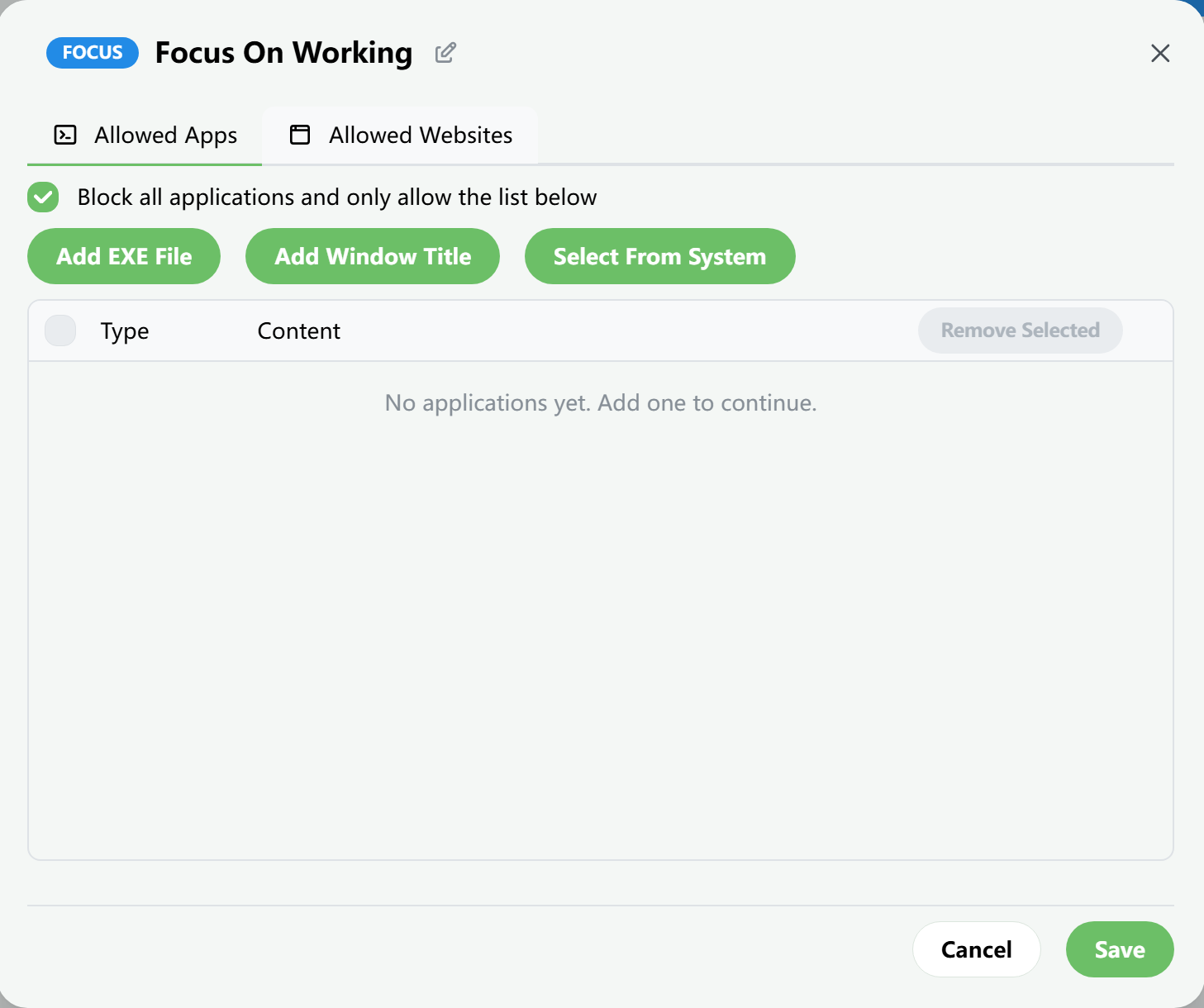
Deep Focus

Set allowlists for apps and websites. Only what you allow can run; everything else stays blocked.

Deep Focus screen

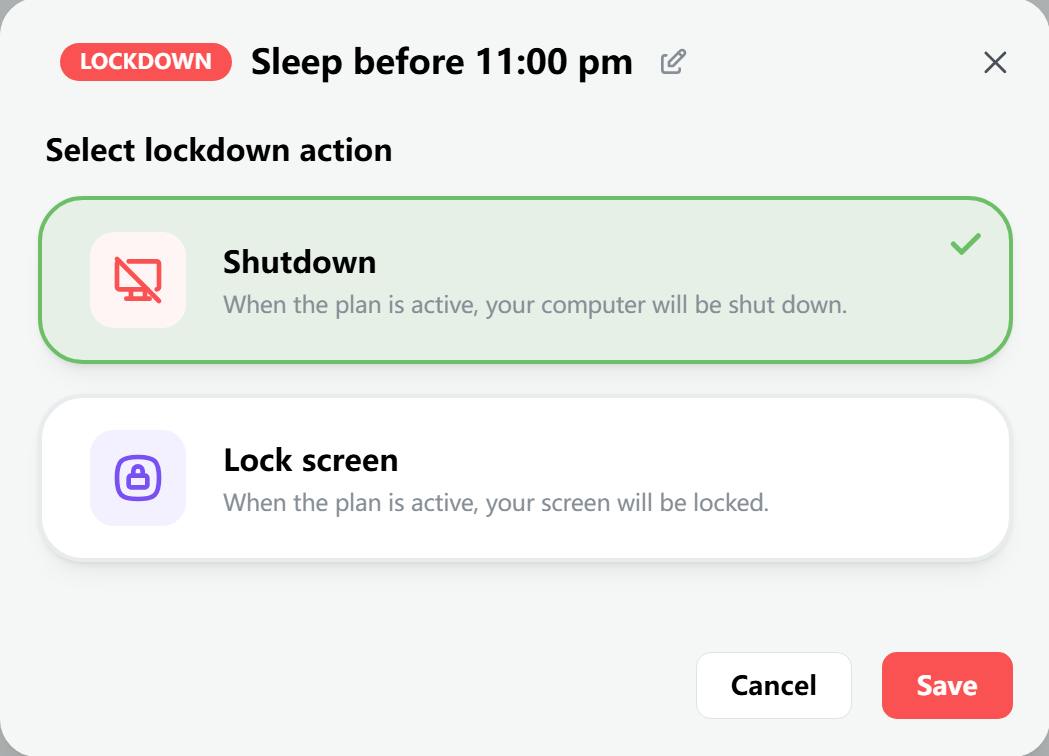
Device Lock

Lock your computer and go fully offline.

Lock it for a fixed duration, or set up a recurring weekly schedule. Your device can either shut down or lock its screen so you can't keep using it.

Device Lock screen

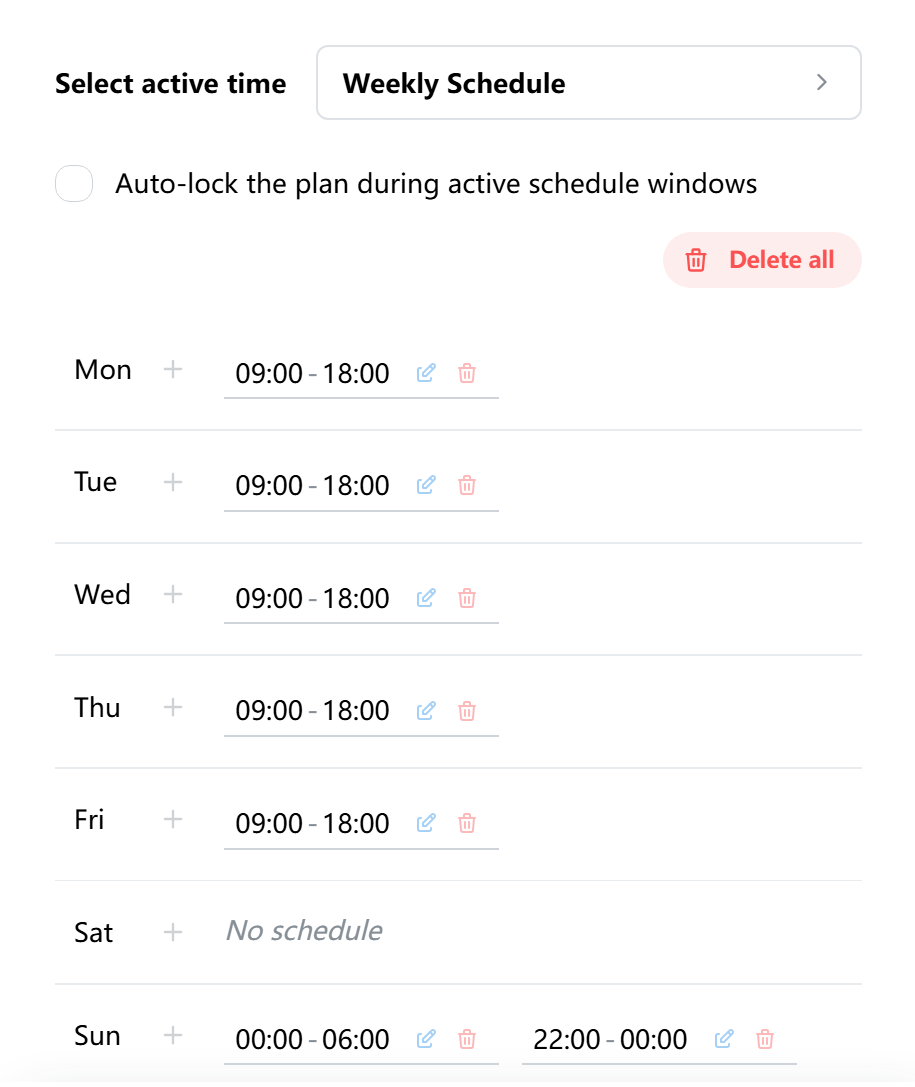
Start a short focus session or build a lasting routine.

Timer Mode keeps a plan running for a set duration, then turns it off automatically. Great for quick focus sessions.

Weekly Schedule activates plans during recurring time windows, like work hours on weekdays or after 11 PM to help you stop staying up too late.

Schedule settings screen

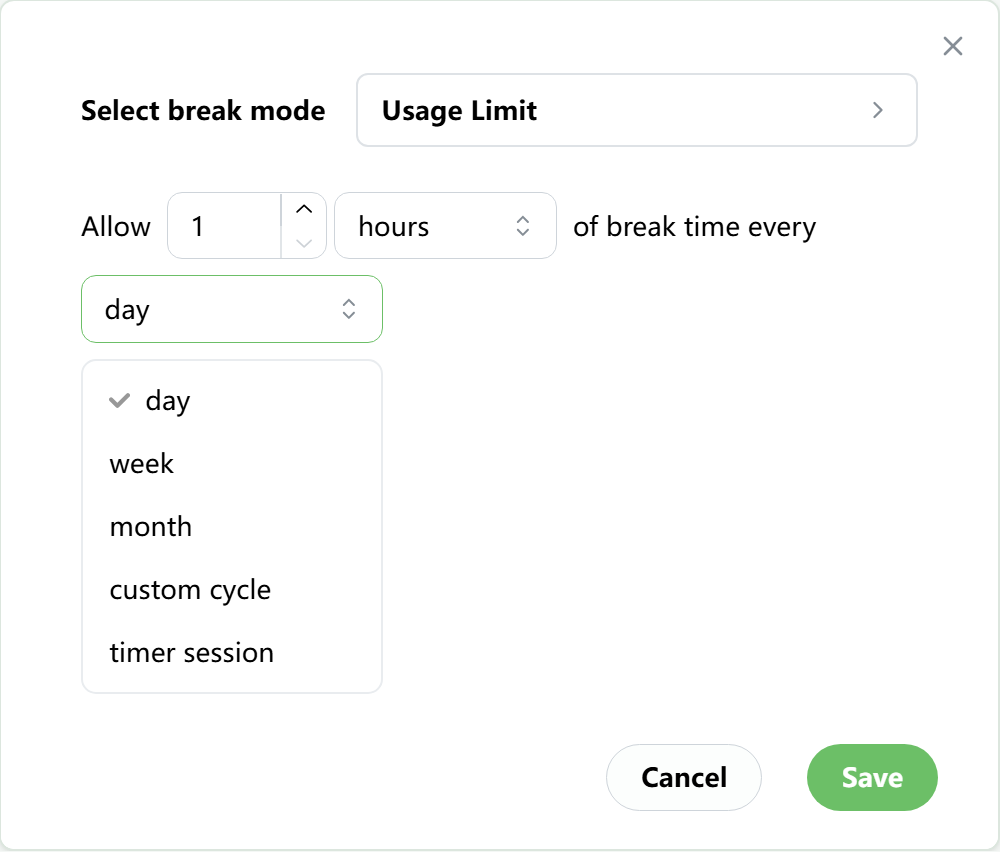
Usage Limit

Set time budgets for websites, apps, windows, or your entire device.

With different plans, you can control each one separately and choose when its allowance resets.

Usage Limit settings screen

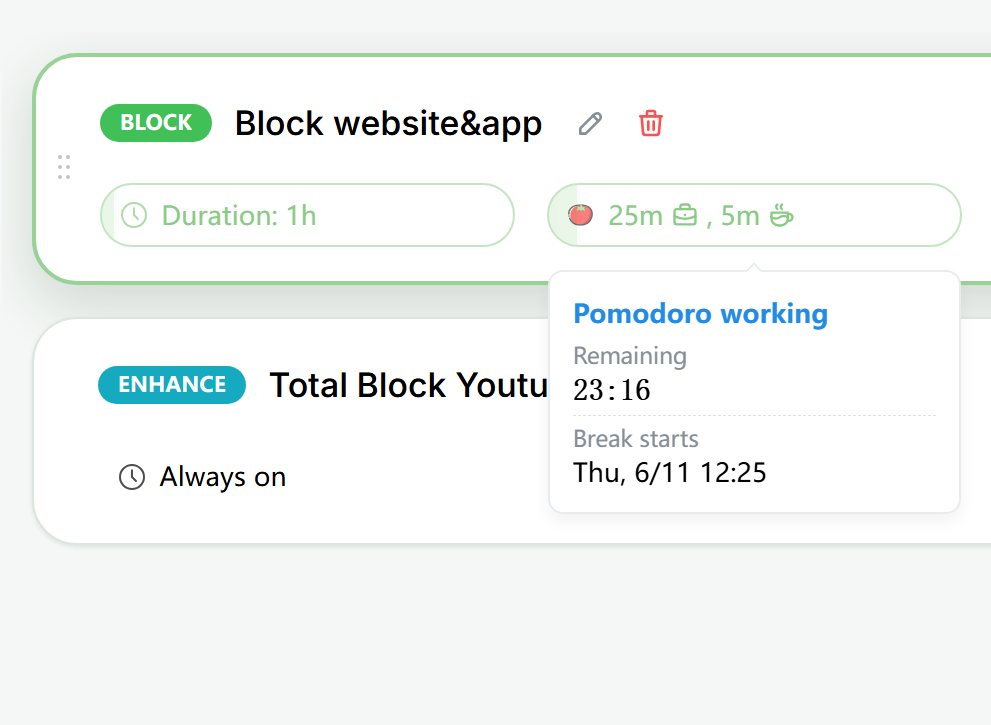
Pomodoro

Run your plans in a Pomodoro cycle.

During focus sessions, distracting websites and apps stay blocked.

During breaks, you can access blocked content again.

Pair it with screen locking if you want regular breaks away from the computer.

Pomodoro feature screen

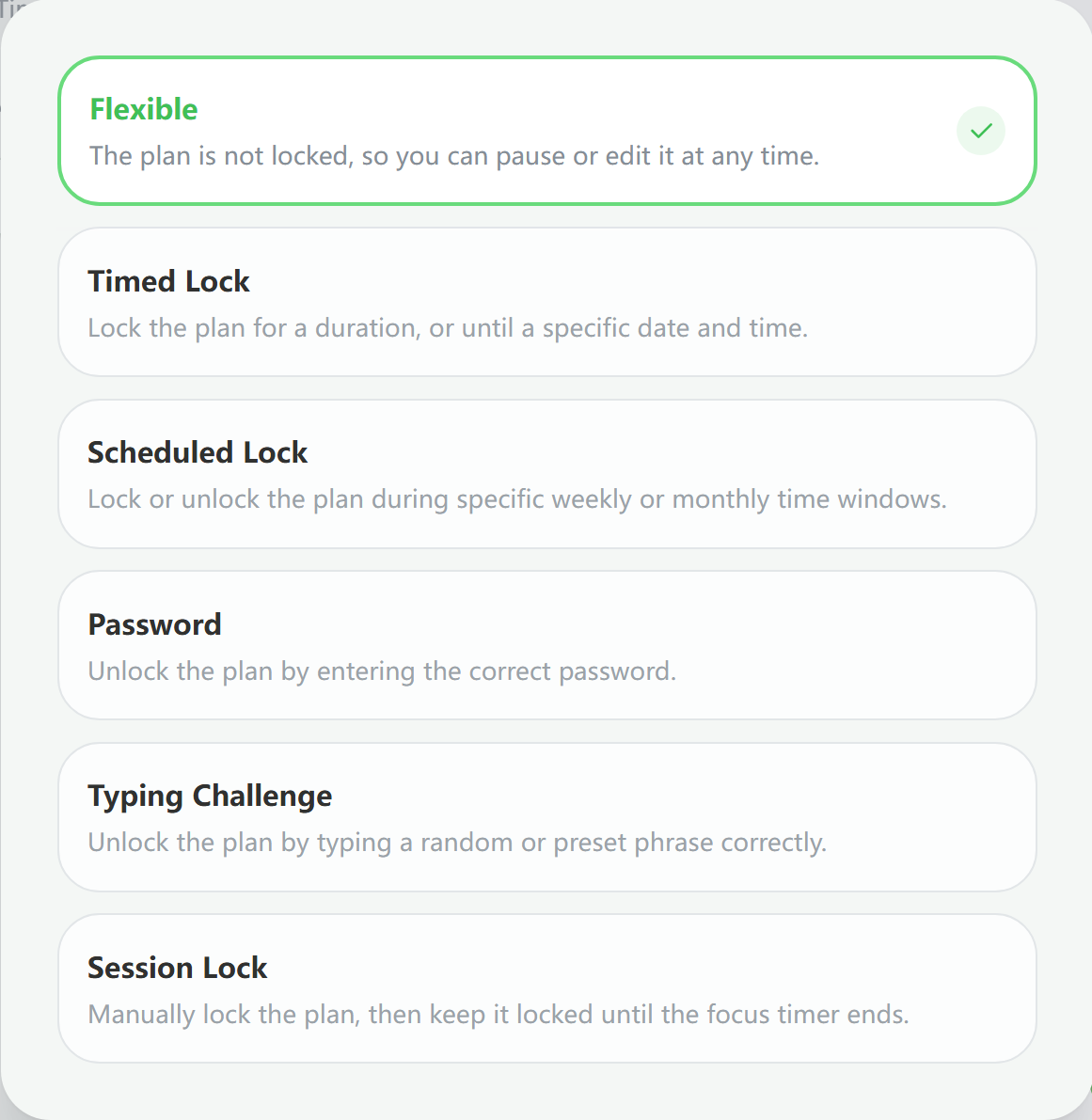
Lock your plans so they're harder to undo.

Use multiple lock methods to make plans harder to back out of. Once locked, you can't stop the plan or uninstall the app.

Lock for a duration, lock on a schedule, or require a password or Typing Challenge to unlock.

Plan lock settings screen

Customize your block page

Edit the text shown on the block page, use images or videos as the background, or replace the page with a custom HTML theme.

It can be practical, calming, or even playful, like a tiny game that helps you cool down.

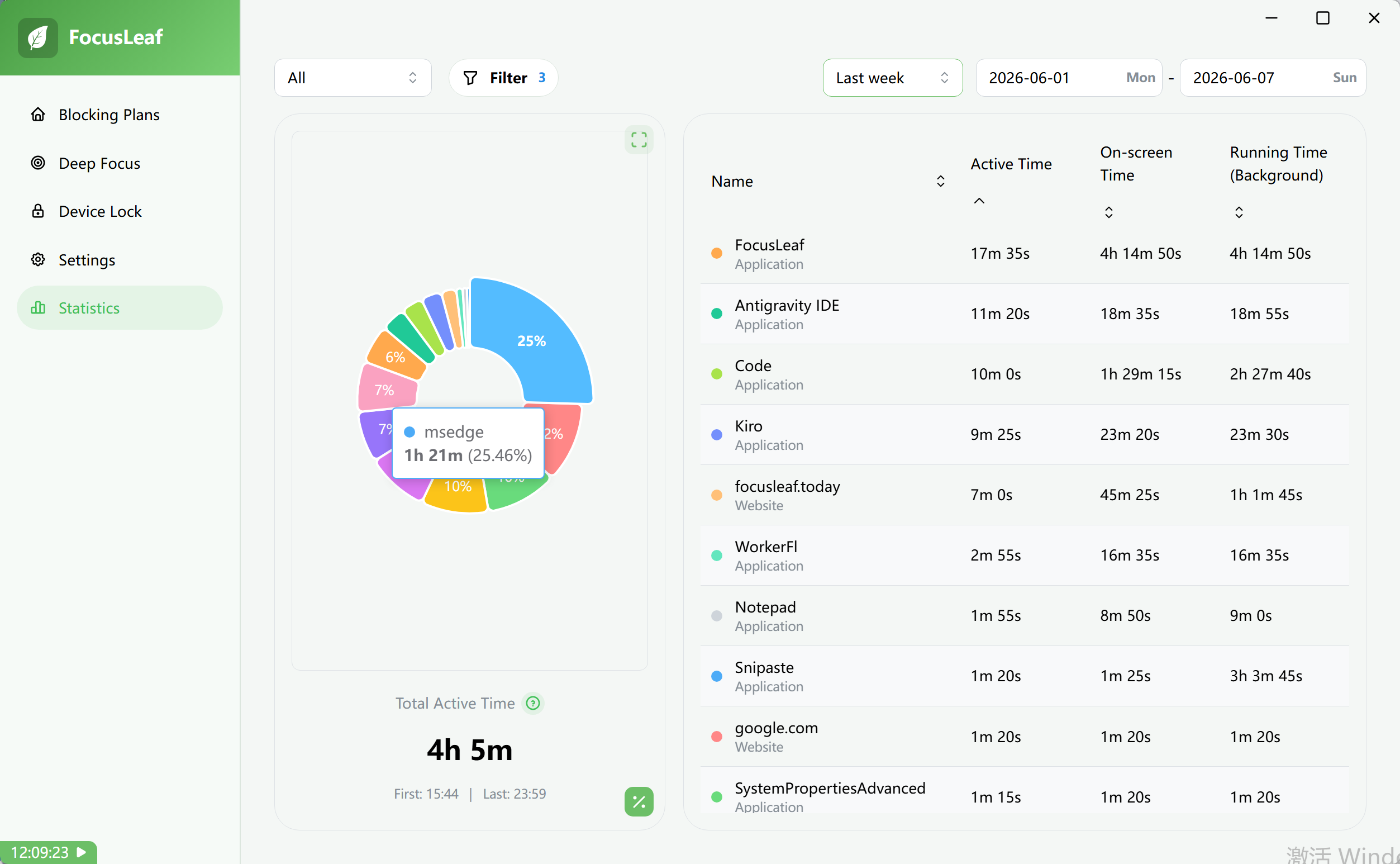
See where your screen time went today.

Use the Statistics page to review app and website usage.

Quickly spot where you're spending the most time.

Statistics page screen