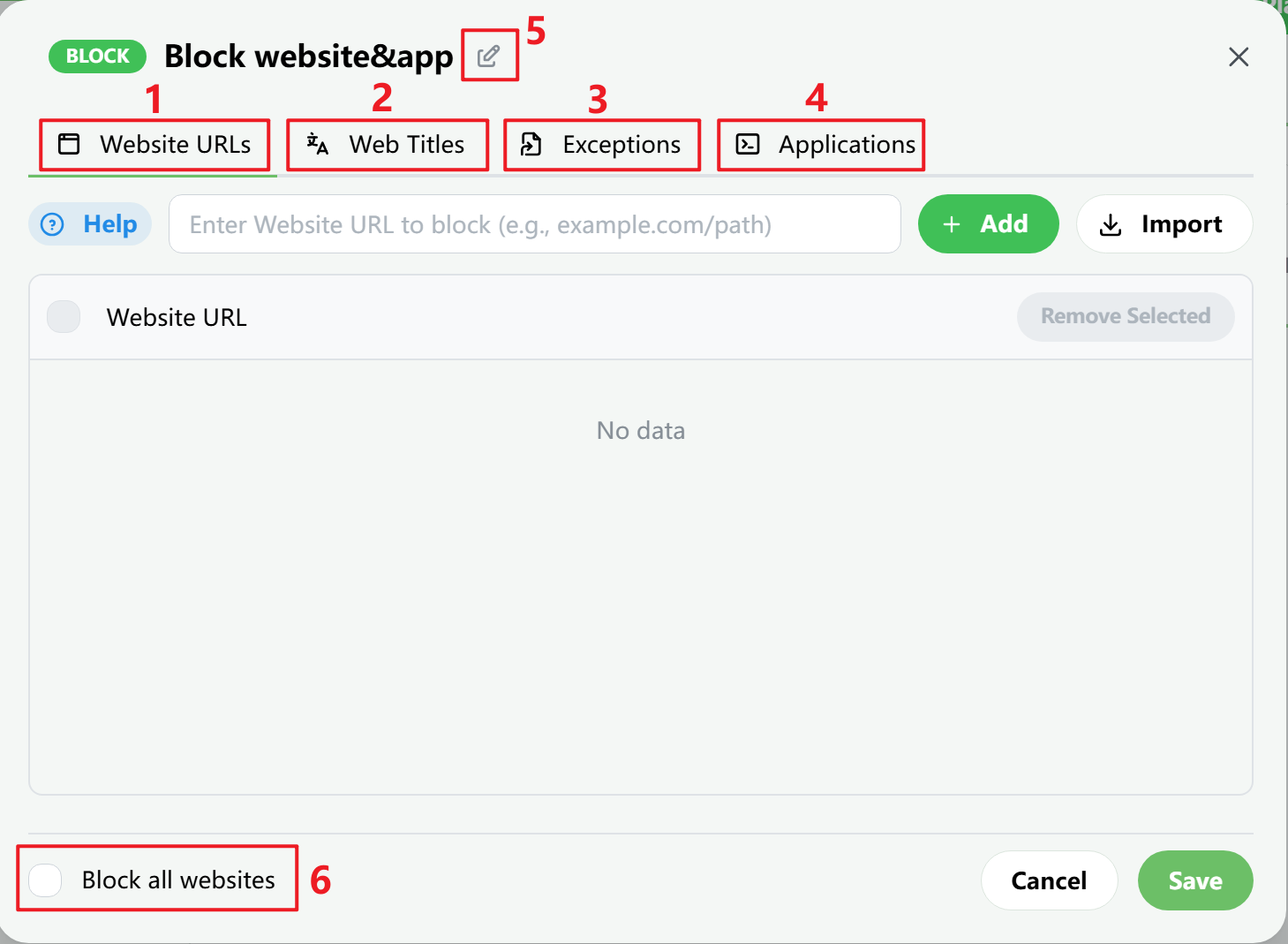
Standard Blocking fits most day-to-day use cases. You can block websites, web titles, apps, and window titles in the same plan while still keeping specific exceptions.
Rule Editor
- Website URLs
Enter the website URL you want to block. The wildcard `*` can match any characters.
- Web Titles
Enter web title keywords to block. Matching uses contains semantics by default, and `*` is also supported.
- Exceptions
Enter exception URLs that should stay accessible. Even if a URL matches the Website URLs or window-title blocklist, it will not be blocked.
- Applications
Besides website rules, you can add apps and window titles to the same plan.
- Plan Name
Edit the plan name.
- Block all websites
Block every website, then use exceptions as the list of websites you still allow.
Website URLs
Enter the website URL you want to block. The wildcard * can match any characters.
reddit.com: blocks the entire Reddit websiteyoutube.com/shorts/*: blocks only the YouTube Shorts sectionyoutube.com/watch?v=q5LtyjMs-5c: blocks one specific video pagegoogle.com/search?q=*game*: blocks Google search results containinggame*game*: blocks any URL or search result containinggame
You do not need to type www. or https://. Just enter something like youtube.com, and FocusLeaf will automatically match relevant subdomains and variants.
Web Titles
Enter the web title keywords you want to block. By default, matching uses contains semantics.
If you enter a keyword like game, pages whose titles contain that keyword will be blocked. The wildcard * is also supported for more advanced matching.
game: blocks every page whose title containsgamefacebook: blocks titles such asFacebook - log in or sign upandfacebook reelsdaily game news: blocks only titles that contain the full phrasedaily game news*game*guide*: use*when you need ordered matching, such asgameappearing beforeguide
If you want to block one specific site address, use Website URLs instead. Web Titles works better for search terms, article titles, video titles, and other page text.
Exceptions
Enter the exception URLs you want to keep accessible. Even if the URL matches the Website URLs or window-title blocklist, it will not be blocked. This is useful when you want to block an entire video site but still allow one specific study video page.
Keep in mind that plans are independent from one another.
If both Plan A and Plan B block youtube.com, and only Plan A has an exception for a study video, that video is still blocked because it remains restricted by Plan B.
The same rule also applies to Deep Focus plans.
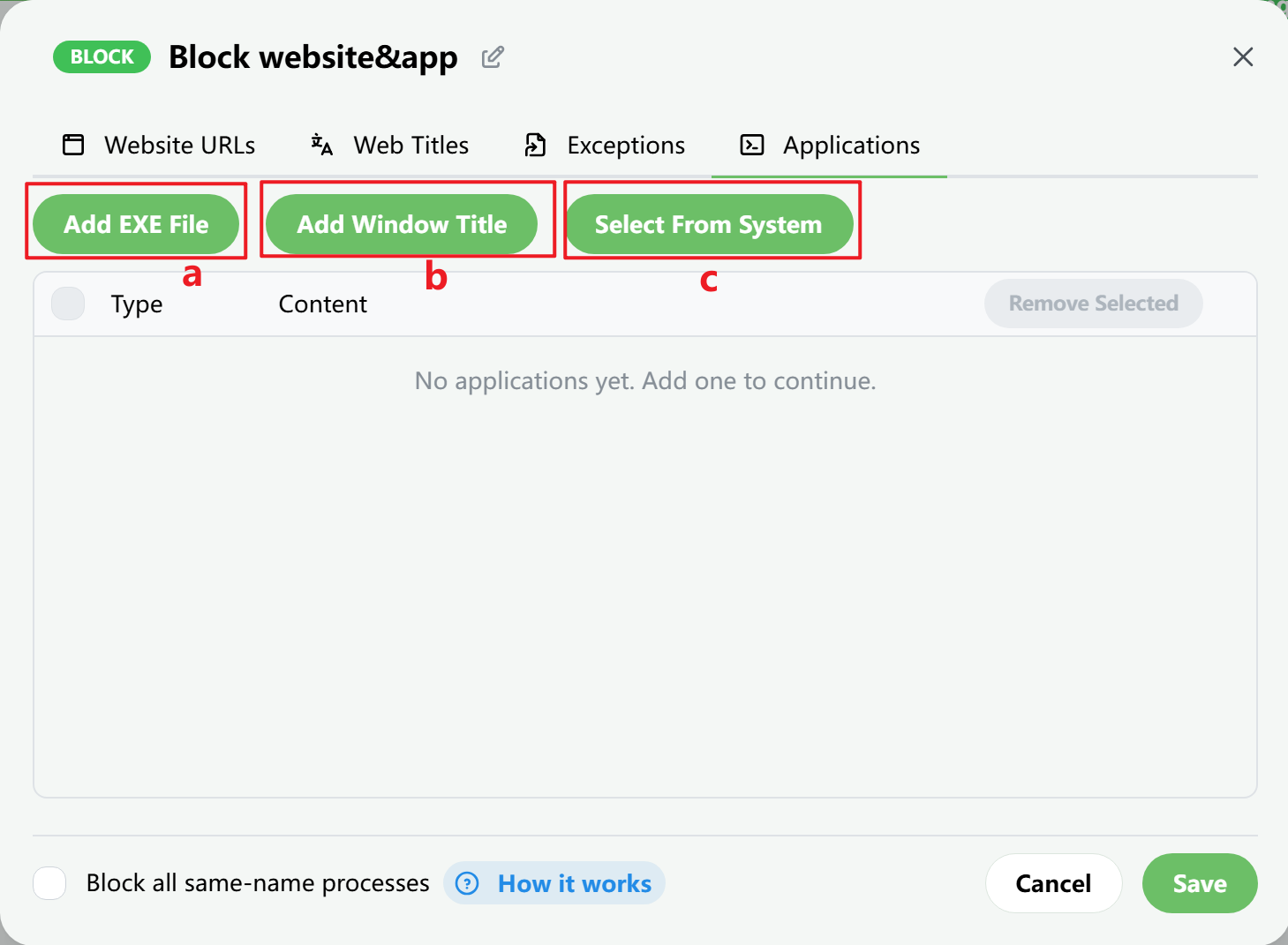
Blocking Apps
- Add exe file
Choose the program or app you want to block from your file system.
- Add window title
Add the window titles you want to block. Any matching window will be closed precisely, which is useful for embedded app windows.
- Select from system
Pick the app you want to block from the currently detected system apps. Avoid blocking core system programs.
When a window title rule matches, that window is closed immediately. If you want to block webpages with a particular title, use the Web Titles rule instead.
Window title matching is exact by default, so a window is blocked only when its title is exactly the same as what you entered.
- Enter
YouTube: only windows whose title is exactlyYouTubeare blocked - Enter
*YouTube*: any window whose title containsYouTubeis blocked
On the Open Windows page, you can inspect current window titles to confirm the rule you need.
Plan Name and Block all websites
You can also edit the plan name in this window.
If you enable Block all websites, every website is blocked, and you can use exceptions as the list of websites you still allow.
Blocklist and Imports
- Rule help
Open a short explanation of how the input rules work.
- Add to blocklist
Type what you want to block, then add it to the current list.
- Import menu
Import lists in bulk or add special rules from the import menu.
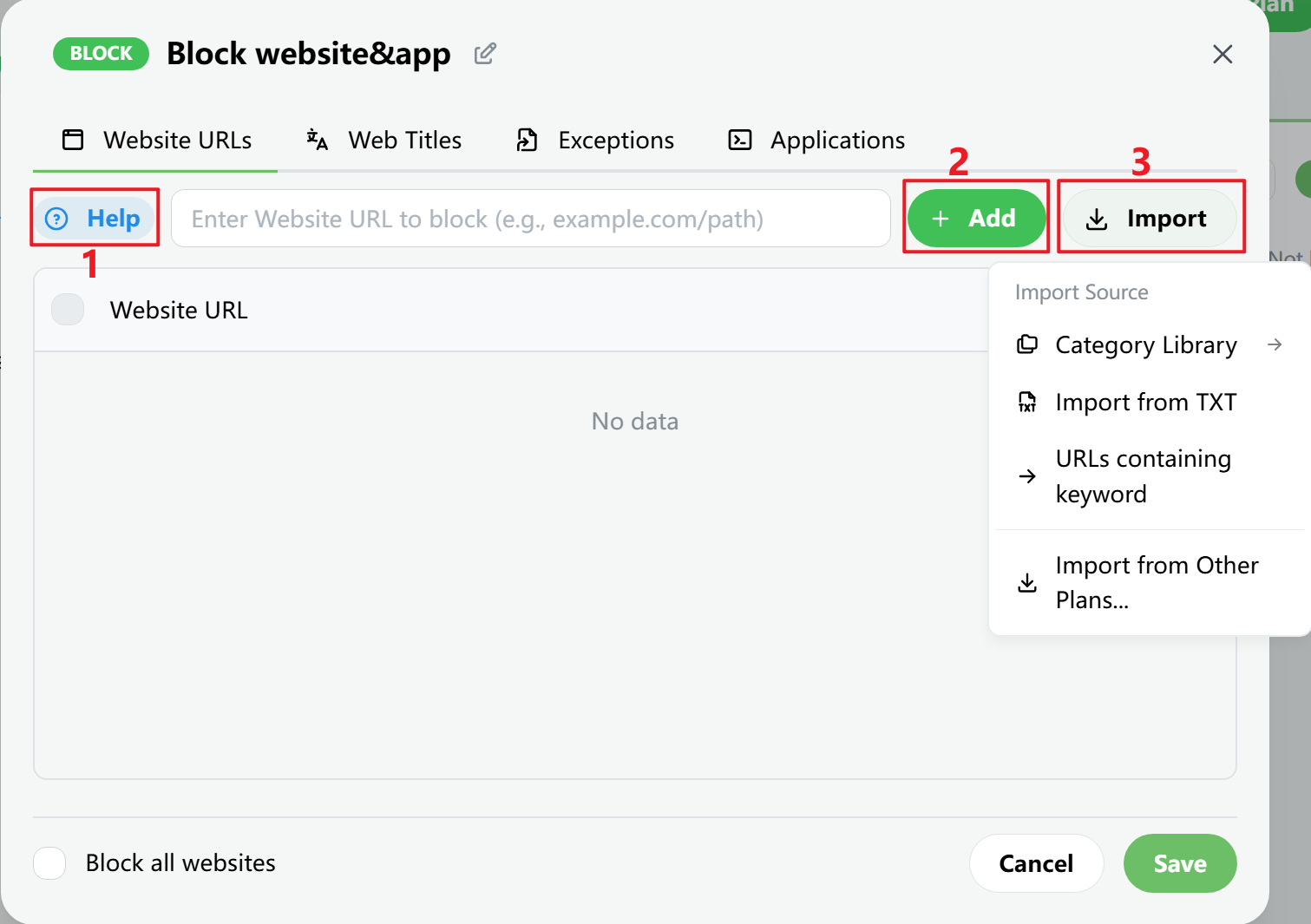
The import menu supports common workflows such as:
- Import from Category Library: import built-in website categories or your own URL / web title categories
- Import from TXT: quickly import a large list of blocked websites from a txt file
- URLs containing keyword: block every URL containing a specific keyword
- Import from other plans: bring in blocklists or exceptions from plans you already created