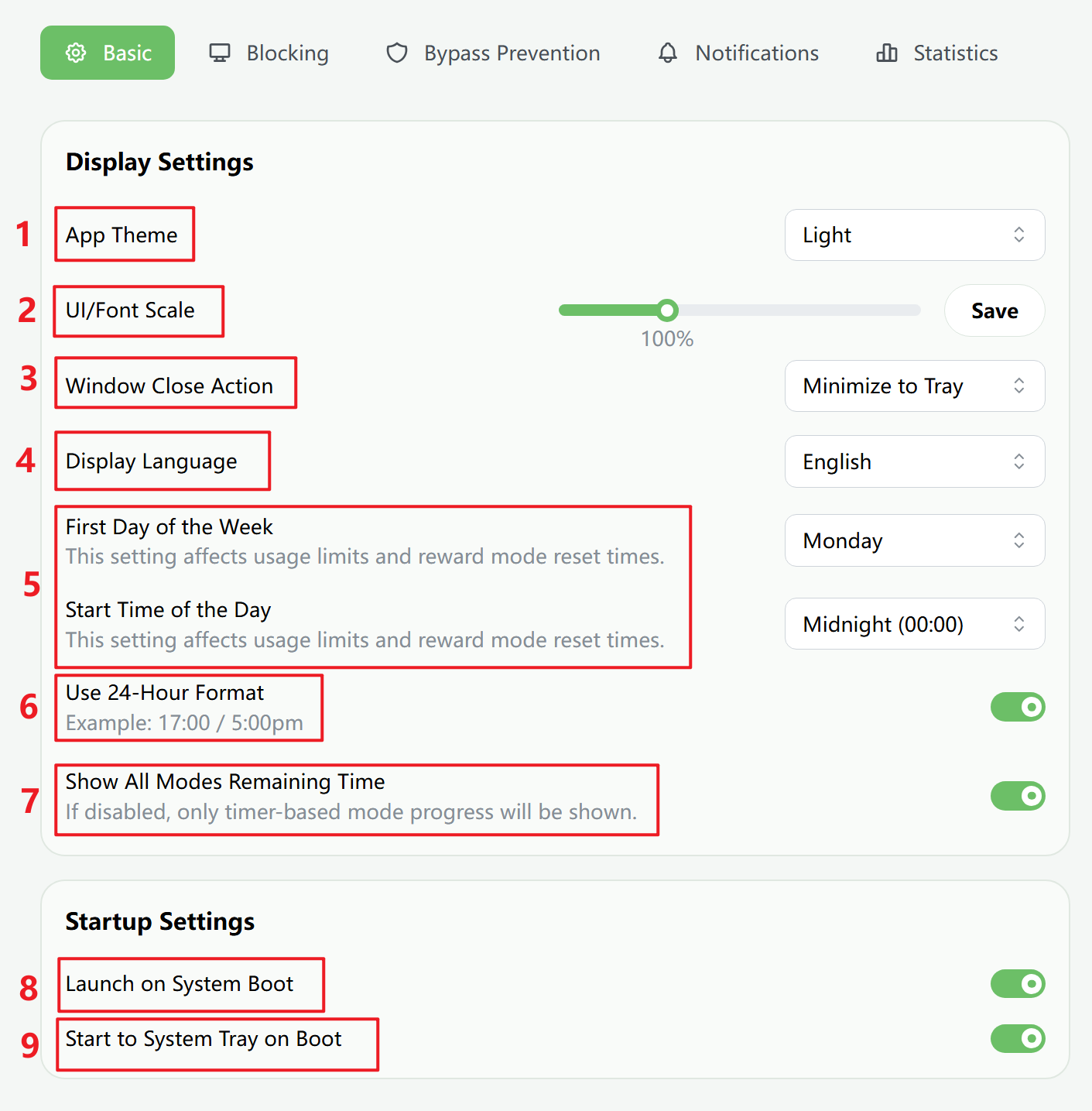
- App Theme
Choose between Light, Dark, or System theme.
- UI/Font Scale
Adjust the size of the interface. After choosing a scale, click Save for it to take effect.
- Window Close Action
Choose whether closing the window minimizes FocusLeaf to the tray or simply closes the window.
- Display Language
Choose the language you want to use. FocusLeaf currently supports English, Simplified Chinese, Korean, Japanese, and German.
- First Day of the Week / Start Time of the Day
These settings affect how time-related content is displayed and when Usage Limit or Reward resets.
- Use 24-Hour Format
Choose how time is displayed across the app.
- Show All Modes Remaining Time
Choose whether the plan panel shows progress for break modes, lock modes, and weekly active windows. Hovering over strategy buttons reveals detailed balances and progress.
- Launch on System Boot
Choose whether the FocusLeaf interface launches automatically when Windows boots. This does not affect plan enforcement.
- Launch to System Tray on Boot
Choose whether FocusLeaf launches directly to the system tray instead of opening the main window on boot.
Window Close Action
If you choose Minimize to Tray, closing the main window keeps FocusLeaf running and leaves an icon in the taskbar tray so that you can reopen it at any time. If you choose Close Window, the interface closes completely whenever you close it.
This does not affect active plans. Any plan that is currently active keeps enforcing blocking.
First Day of the Week / Start Time of the Day
Choose these based on your own routine. They affect how time-related information is displayed and when Usage Limit or Reward resets.
For example, if Sunday is the first day of the week, the start time of the day is 2:00 AM, and you use a weekly Usage Limit of 1 hour, then the weekly reset happens every Sunday at 2:00 AM.
Show All Modes Remaining Time
This option controls whether the plan panel shows progress for break modes, lock modes, and weekly active schedule windows.
When you hover over a strategy button, FocusLeaf can show the detailed allowance balance and time progress. If this option is disabled, only Timer Mode progress is shown.
Once this option is turned off while a plan is locked, it cannot be turned back on until the lock ends.