Plan Panel
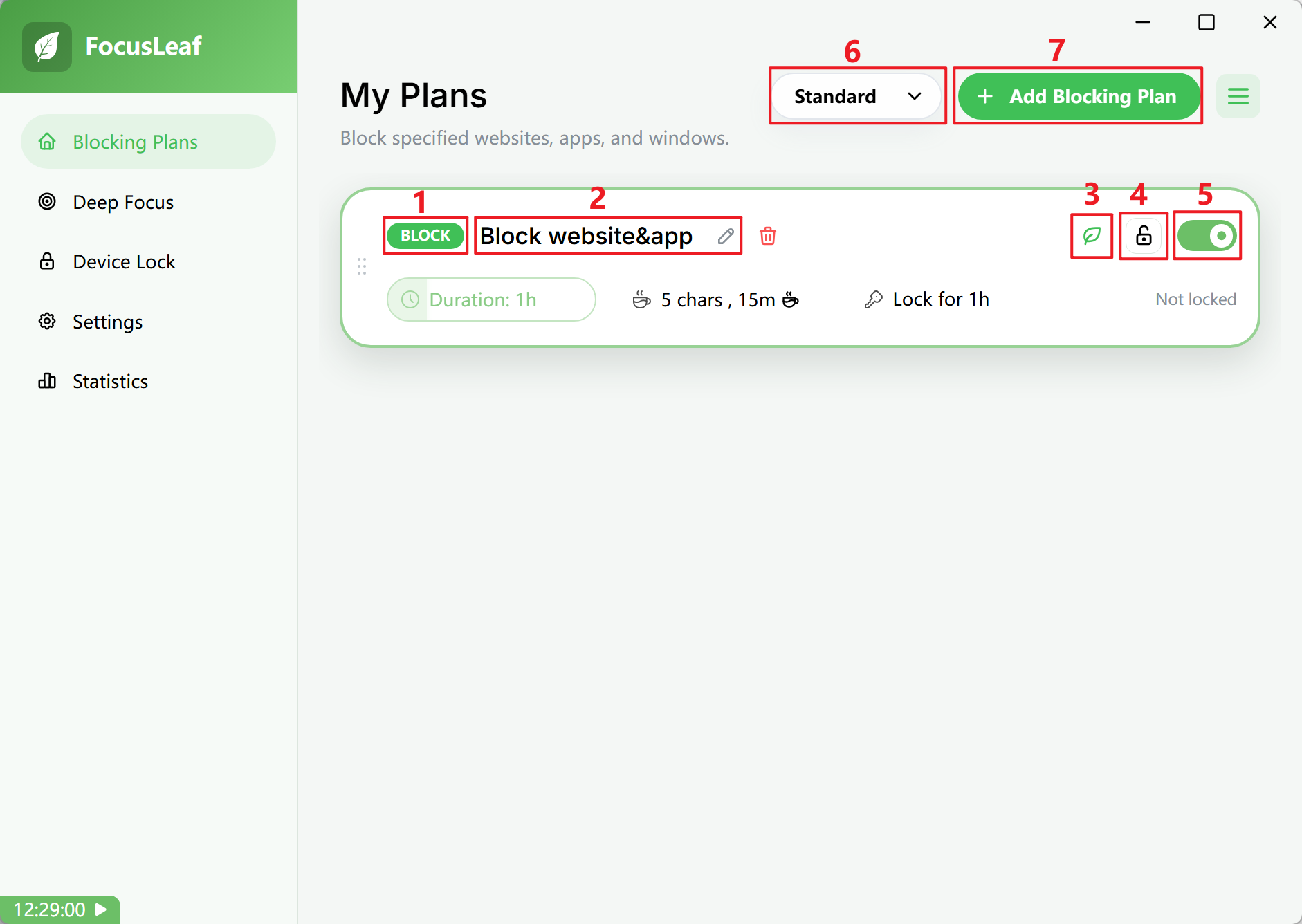
- Plan type
Shows whether the current plan is Standard Blocking, Enhanced Web Blocking, Deep Focus, or Device Lock.
- Plan editor entry
Open this to change the plan name, rule list, or Device Lock action.
- Start break button
Starts a break manually. You will use this only if the current plan has a break mode that can be triggered manually.
- Lock / unlock plan button
Lock or unlock the plan manually. It is available only when the current lock mode supports manual actions.
- Start / stop plan button
Start or stop the current plan. If the plan is locked, you cannot stop it manually until it is unlocked.
- Choose plan type
When creating a plan, choose between Standard Blocking and Enhanced Web Blocking.
- Create new plan
Create a new plan.
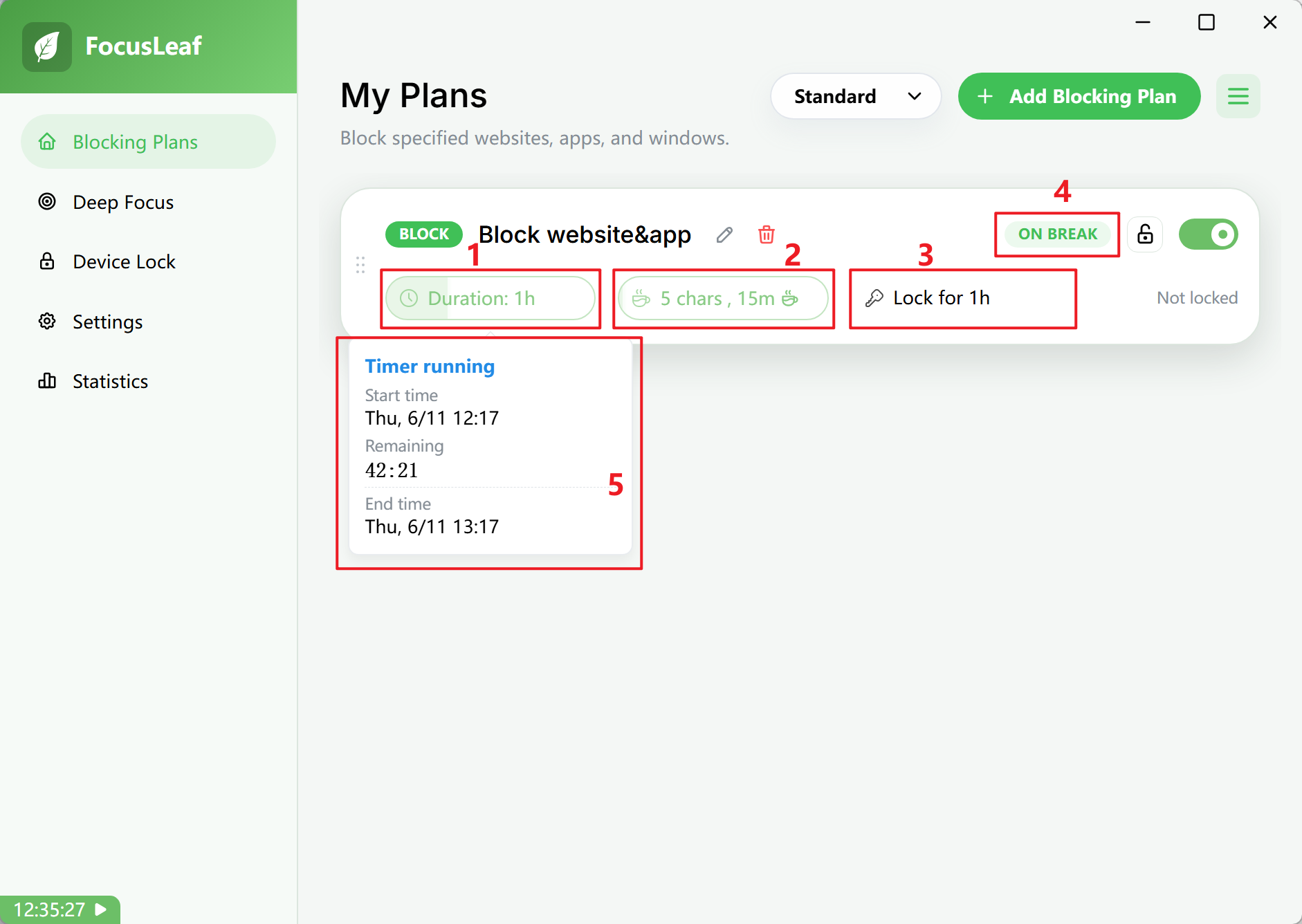
- Active Time
Choose whether the plan runs for a fixed duration or only during specific schedule windows each week.
- Break Mode
Choose whether breaks come from a daily / weekly allowance or from passing a Typing Challenge.
- Lock Mode
Choose how the plan is locked. While locked, the plan cannot be stopped and can only become stricter.
- Break status indicator
Shows whether the plan is currently on a break.
- Strategy hover tooltip
Check time progress or remaining allowance. Hover over a strategy button to see the detailed balance and time progress.
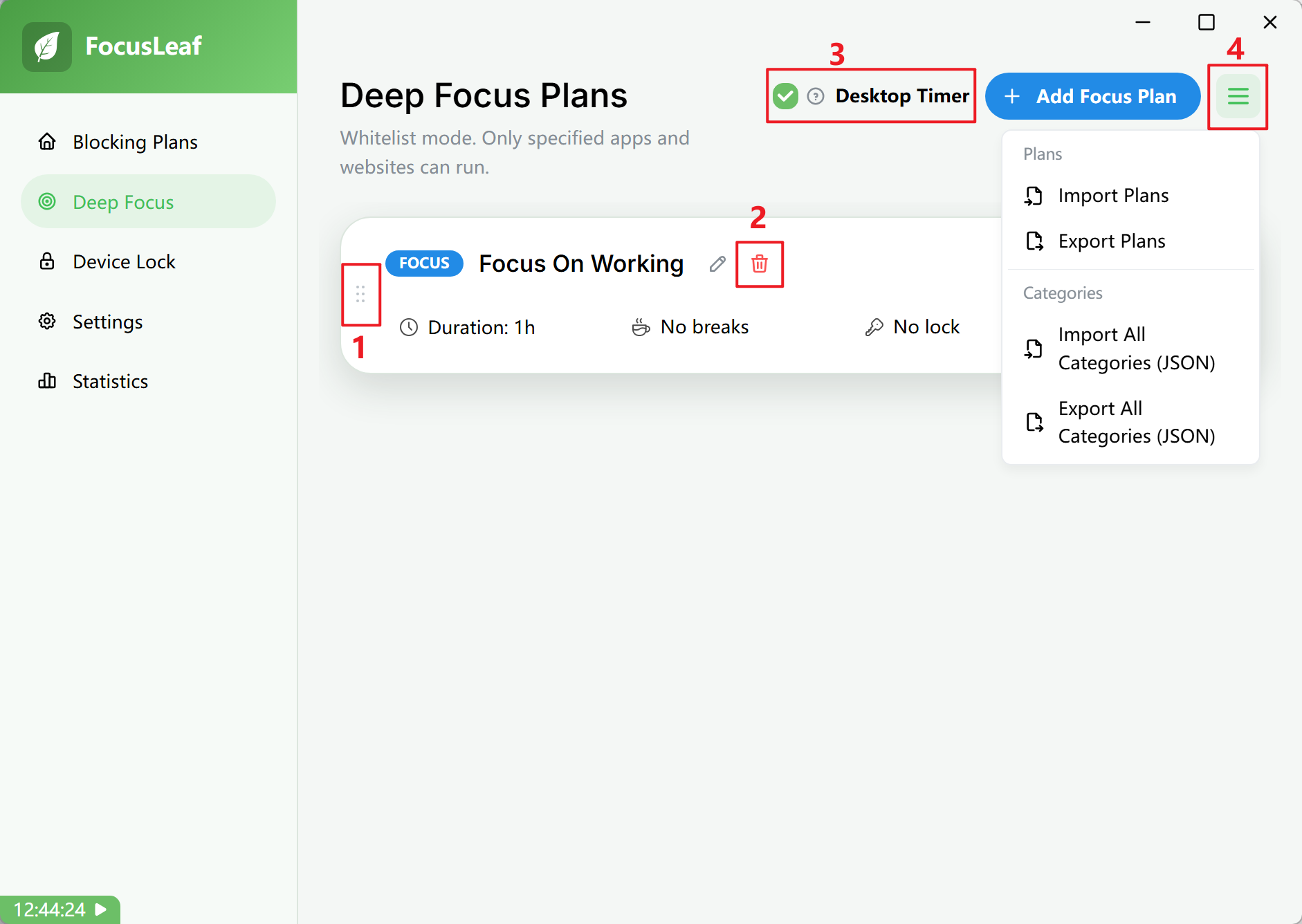
- Drag to reorder
Drag to change the order of plan cards.
- Delete button
Delete the plan.
- Desktop Timer
In Deep Focus, you can show a floating desktop timer that displays progress and warns you when break allowance is being consumed.
- Import / export all plans or categories
Export plans or categories from this computer as files, then import them on another device or after reinstalling.