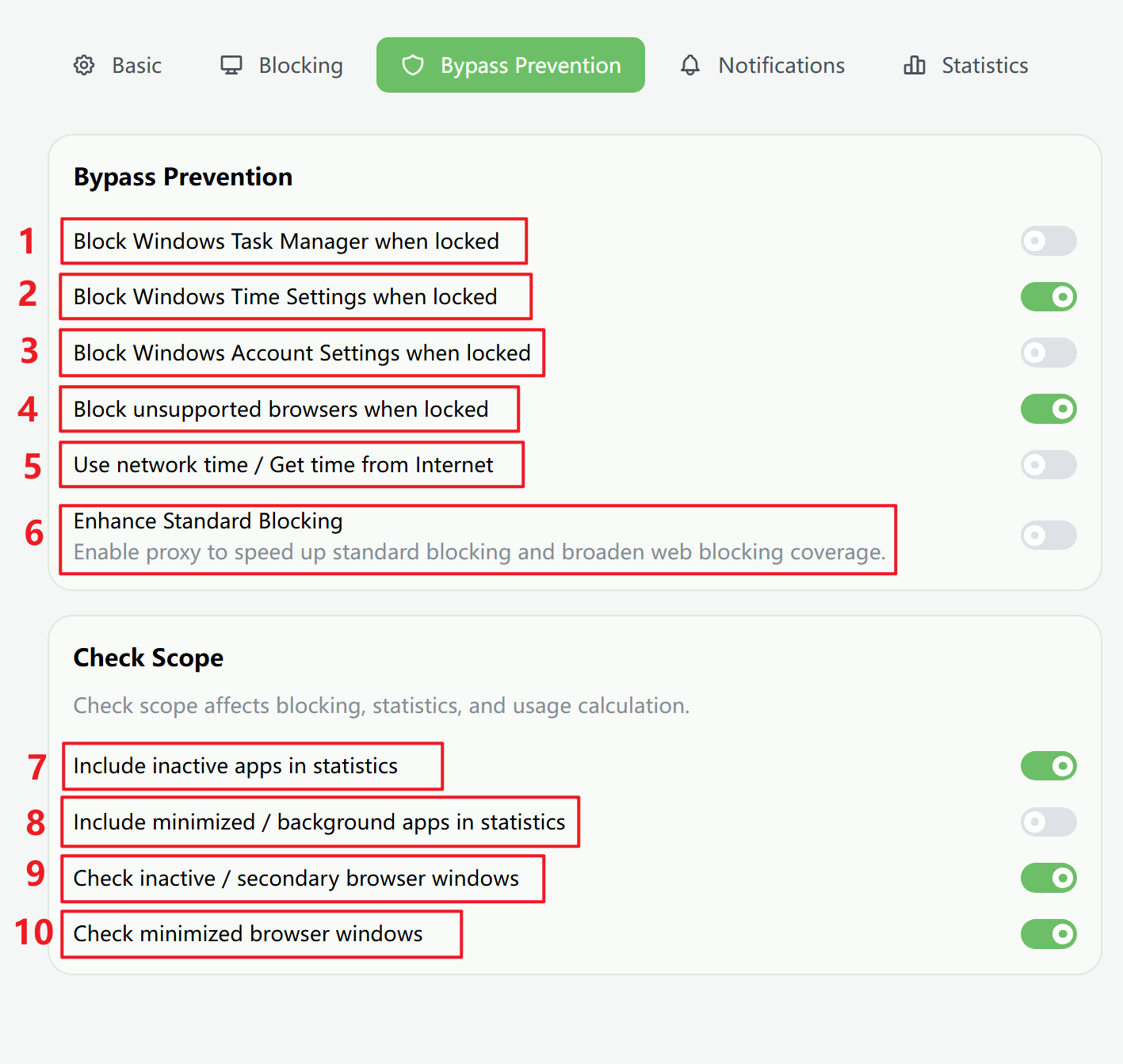
- Block Windows Task Manager when locked
While a plan is locked, Windows Task Manager is blocked.
- Block Windows Time Settings when locked
While a plan is locked, Windows Time Settings is blocked so that system time cannot be changed.
- Block Windows Account Settings when locked
While a plan is locked, Windows Account Settings is blocked so that system account settings cannot be changed.
- Block unsupported browsers when locked
While a plan is locked, unsupported browsers are force-closed. You can also use Enhanced Web Blocking to cover every browser at the system level.
- Use network time / Get time from Internet
When network time is enabled, changing the system clock won't affect FocusLeaf's timing accuracy.
- Enhance Standard Blocking
Use a proxy to make Standard Blocking faster and broaden its web blocking coverage.
- Include inactive apps in statistics
Count app windows that are still visible on screen even when they are not the active window.
- Include minimized / background apps in statistics
Count minimized windows and background processes in statistics.
- Check inactive / secondary browser windows
If disabled, FocusLeaf stops tracking URL, web title, blocking, and history data from inactive browser windows.
- Check minimized browser windows
If disabled, FocusLeaf stops tracking URL, web title, blocking, and history data from minimized browser windows.
Use network time
When network time is enabled, changing the system clock won’t affect FocusLeaf’s timing accuracy.
- FocusLeaf still uses your system time zone for local-time calculations.
- When a plan is locked, that time zone is locked along with it.
- If you switch to a new time zone while the plan is locked, FocusLeaf continues using the old one until the plan unlocks.
Enhance Standard Blocking
After this option is enabled, Standard Blocking can intercept webpages earlier through the proxy, sometimes before the page fully loads.
If you do not use website exceptions, its coverage becomes much closer to Enhanced Web Blocking.
What Check Scope Affects
Check Scope affects blocking, statistics, and usage calculation.
Include inactive apps in statistics
An inactive app window is a window that is still visible on screen but is not the focused window.
This option does not affect app blocking. Once a rule matches, the app is blocked even if it is inactive or minimized.
It does affect how Usage Limit and Reward calculate time. If you do not want inactive app windows to count toward usage, you can turn this option off.
Include minimized / background apps in statistics
A background app is one without a visible window. It may be a background process, or it may already be minimized to the taskbar and no longer visible on screen.
This option does not affect app blocking. Once a rule matches, the app is blocked even if it is inactive or minimized.
It does affect how Usage Limit and Reward calculate time. If you do not want minimized or background apps to count toward usage, you can turn this option off.
Check inactive / secondary browser windows
An inactive browser window is a browser that is still visible on screen but is not the focused app.
If you disable this option, FocusLeaf no longer reads URL or web title data from inactive browser windows, no longer applies web blocking to them, and no longer records their browsing history in statistics. Usage Limit and Reward also stop counting those visits.
Turning this off can reduce CPU usage.
Check minimized browser windows
A minimized browser window is a browser that has been minimized to the taskbar and no longer has a visible window on screen.
If you disable this option, FocusLeaf no longer reads URL or web title data from minimized browser windows, no longer applies web blocking to them, and no longer records their browsing history in statistics. Usage Limit and Reward also stop counting those visits.
Turning this off can also reduce CPU usage.