Statistics
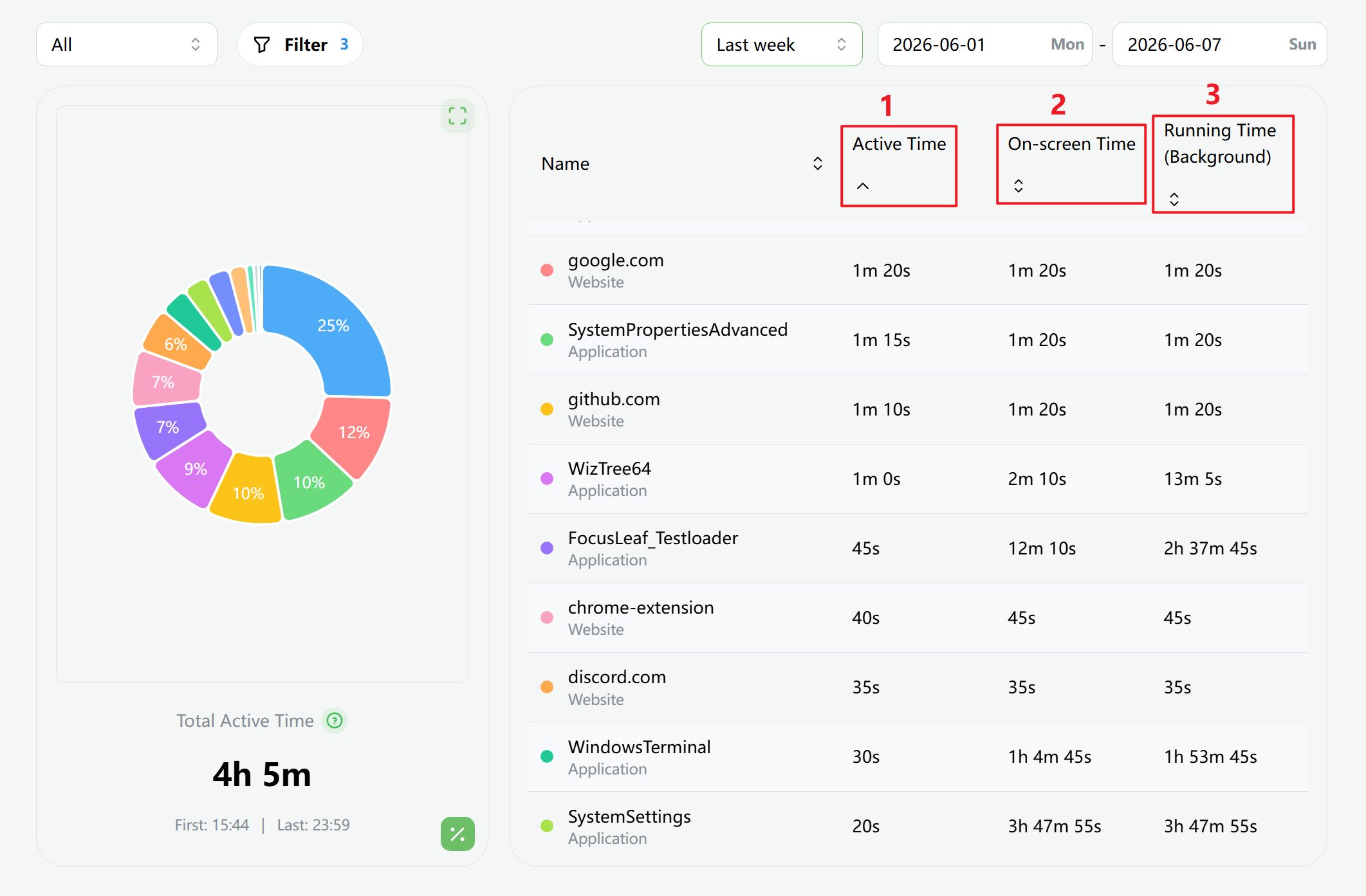
Active Time
An active app or webpage is the one you are actually using at a given moment. In most cases there is only one active app at a time. When you are browsing the web, there is often one active app (the browser) and one active webpage at the same time.
Total Active Time is best understood as the time you were truly using the computer. It tries to avoid double-counting overlap when more than one item appears active during the same moment.
By default, the statistics view filters out browsers. That usually makes the sum of each item’s active time equal the Total Active Time. But if you use split view in a browser, multiple webpages may count as active during the same period, so Total Active Time can end up smaller than the sum of the individual items.
On-screen Time
On-screen Time is the total time an app or webpage remains visible on the screen. It includes not only the time when you are actively using it, but also the time when it stays visible without being the focused window.
Running Time (Background)
Running Time is the total time an app or webpage keeps running on the computer, including:
- Active Time
- On-screen Time
- minimized or background time
FocusLeaf does not track every background process without a visible window, but if an app appears in a plan’s blocked list, FocusLeaf still records it even when it is running in the background.
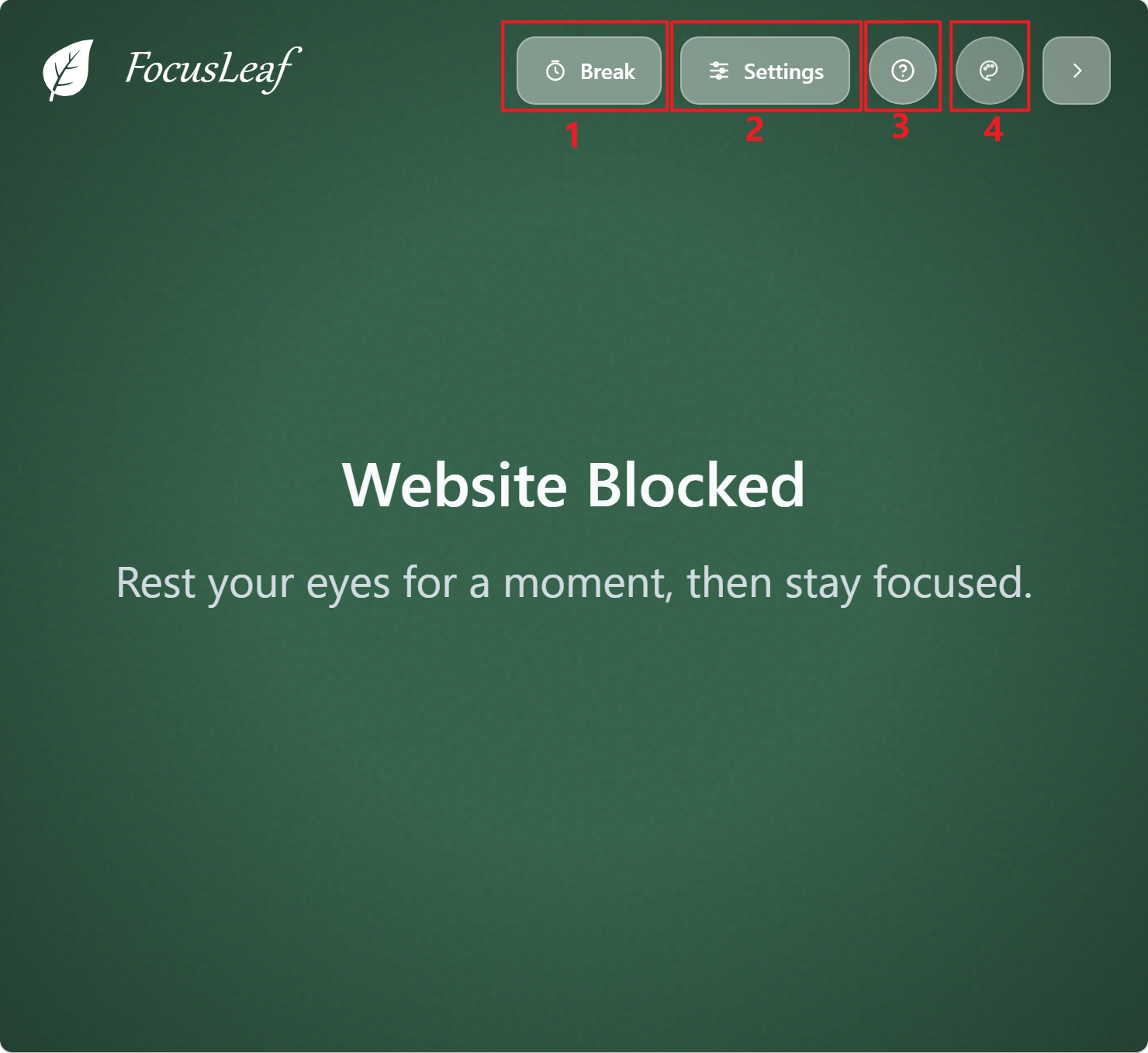
Block Page
- Take a break
If the current plan uses a manually triggered break mode such as Typing Challenge, you can start that break from here.
- Display settings
Adjust the text, styles, and background on the block page. When you use the official theme, you can switch between solid colors, images, and video backgrounds.
- Question-mark button
Show why the current page was blocked, including the matched plan, rule, and URL.
- Theme button
Upload a custom single-file HTML theme or a ZIP theme package to replace the default block page look.
Custom Theme Requirements
- A
.zippackage must include one ofindex.html,main.html, orhome.htmlas its entry file. - All resources should use relative paths and be packaged together with the entry file.
- If the theme looks broken, open the entry file locally in a browser first to confirm that the theme itself works.
Custom Theme Notes
- Import themes only from sources you trust. A malicious theme can mislead or manipulate your actions.
- Theme scripts may reduce performance or cause rendering glitches.
- Themes cannot directly read or write system files, and external network requests are restricted.
- Keep themes self-contained. Package HTML, JS, CSS, fonts, images, audio, video, models, and other assets together in the
.zipand reference them with relative paths. - Do not depend on CDNs or runtime downloads. Remote fonts, scripts,
three.js, textures, models, or APIs may fail to load. - Themes run inside a restricted sandbox, so
fetch,WebSocket,service worker, nestediframe, and form submission features may be unavailable or limited. - If the theme includes keyboard interaction, handle focus explicitly. Do not assume a game or shortcut page will automatically receive
keydownevents after loading. - If Disable block page interaction is enabled, buttons, links, clicks, and game interaction may stop working.
- Avoid very large videos, textures, or heavy WebGL scenes, otherwise the block page may become slow or unresponsive.